

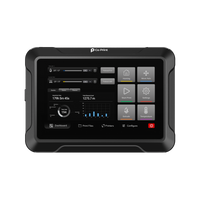


Quadro's touchscreen is organized around four views: a printing screen, a material control screen, calibration wizards and a four-toolhead control screen. Each one removes a step that a multi-toolhead printer would otherwise make complicated, from seeing which filament is loaded where to calibrating all four nozzles with one tap.
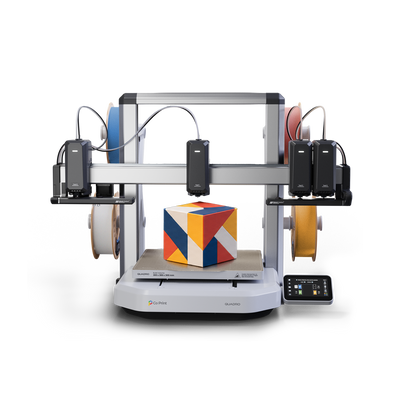
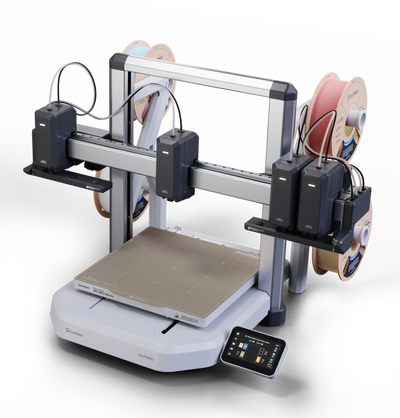
QuadrOS, the printer's operating system built on Klipper, runs on a 4.3-inch, 800 × 480 touchscreen. See QuadrOS, Klipper and Co Slicer.
Printing Interface
All the controls you need while printing are in one place: the file being printed, progress, layer count and remaining time, plus temperatures, fan speed and bed temperature. A strip of four toolhead icons shows which one is printing and what material it holds. You can adjust print speed on the fly, skip objects, pause or stop. QLight mirrors the active toolhead on the machine itself.
Material Control System
At a glance, you see where each filament is loaded: T0 to T3, the material and the color. You can load or unload any filament, enter filament properties and use ready-made presets for the material. Because each toolhead keeps its own filament, loading is a per-toolhead action, and the touchscreen tells you which one you're working on. See One Print. Four Materials That Don't Get Along..
Auto Calibration Wizards
Quadro runs the calibrations you need from one screen:
- Full Self Check (recommended): calibrates all axes and print heads, about 7 minutes.
- Build Plate Leveling: calibrates only the build plate, about 4 minutes.
- Toolhead Calibration: calibrates the four print heads along three axes, about 3 minutes.
The calibration covers toolhead offsets, bed leveling, flow calibration, input shaping and more. Read How Quadro Calibrates Four Independent Toolheads.
4-Toolhead Control
Even with four toolheads, control stays simple. Select T1 to T4, pick a movement step (1, 5 or 10 mm) and move the axes. Heat, park, calibrate and move toolheads individually, or all at once. This is useful for inspection and servicing. For what happens to a parked toolhead, see Inside QDock.
Why a Simple Interface Matters
A multi-toolhead printer has more to manage, so the interface has to do more of the work. Four toolheads are only an advantage if loading filament, calibrating and checking status are quick. That's the design goal: QDock, calibration and QLight all feed into the same four screens.
Key Takeaways
- Four views cover printing, material control, calibration and toolhead control.
- You see where each filament is loaded and can load or unload any of them.
- Calibration is a wizard: about 7 minutes for a full check, 3 for toolhead calibration alone.
- Toolheads can be moved and controlled individually or together.
For the other questions worth asking before buying, see our multi toolhead 3D printer buying guide.
Want to see the interface? See Quadro or visit the Kickstarter page.
3. FAQ
What does Quadro's touchscreen show during a print? The file, progress, layer count, remaining time, temperatures, fan speed and which toolhead is printing and what material it holds. You can also adjust speed, skip objects, pause or stop.
How do I load filament on Quadro? Open the Material Control screen, select a toolhead's filament slot, then use Load or Unload. You can also enter filament properties or use presets.
How long does calibration take? The screen lists about 7 minutes for a Full Self Check, about 4 for Build Plate Leveling and about 3 for Toolhead Calibration.
Can I control each toolhead separately? Yes. You can select T1 to T4 and move, heat, park or calibrate them individually or together.
What size is the touchscreen? Quadro has a 4.3-inch touchscreen with a resolution of 800 × 480.