





To estimate multicolor purge waste, multiply the number of color changes in a model by the filament each change throws away, then by how many models you print in a year. Our savings calculator does the math for you and compares the result with Quadro, which has no color-clearing purge.
Purge waste is easy to ignore one print at a time. Over a year it becomes kilograms of filament. Here's how to put a number on it for the way you print.
The Formula

The calculator uses a 0.20 mm layer height. A 150 mm model at 0.20 mm has 750 layers, and with 1.7 color changes per layer that's about 1,275 color changes in one print.
Where to Find Your Numbers
- Model height: the typical height of what you print, in mm. Your slicer shows it.
- Color changes per layer: divide the total number of color changes your slicer reports by the number of layers.
- Grams per change: divide your slicer's purge or flush estimate by the number of color changes.
- Prints per week: how many multicolor prints you run in a normal week.
- Filament price: what you pay for a 1 kg spool.
The closer these are to your own slicer's estimates, the more useful the result. For what drives purge volume in the first place, see Purge Towers Explained: Why Multicolor Prints Waste Filament.
Three Worked Examples
These are the three starting profiles in the calculator. The Quadro column uses a comparison scenario of up to 90% less waste.

The pattern is the same in every row: waste grows with every color change, so it grows fastest for people who print the most multicolor work. That's why print farms feel it first. See Multicolor 3D Printing for Print Farms: Batches and Waste.
How Quadro Changes the Result
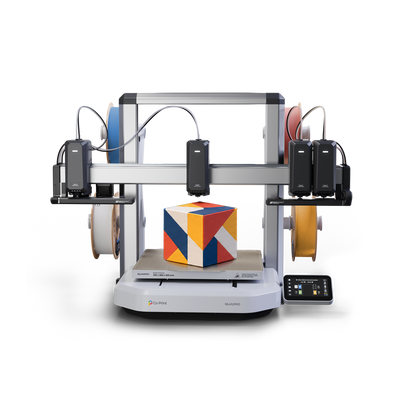
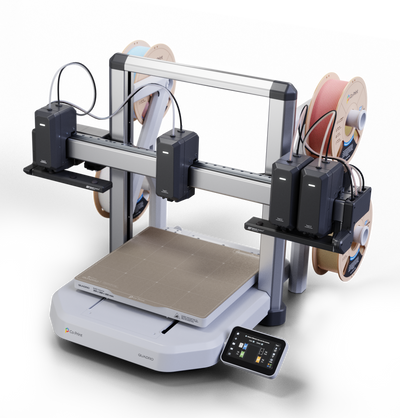
A single-nozzle printer has to flush the old color out of its nozzle at every change. Quadro doesn't, because each of its four toolheads holds its own filament in its own nozzle. What remains is a small priming extrusion that stabilizes pressure when a toolhead starts printing again. See Why Quadro Doesn't Purge: Multicolor Printing Without Waste.
On compatible models with enough infill, Zero Waste Mode moves that priming into the model's infill, so the prime tower disappears too. See Zero Waste Mode: Multicolor Printing Without a Prime Tower.
What the Estimate Doesn't Cover
- Failed prints and test prints.
- Material changes, which usually need more flushing than color changes.
- Your own flush settings, which can be higher or lower than the defaults.
The figures are illustrative estimates, not a guarantee of savings for every model. They're a way to see the size of the problem for your own printing. For a measured comparison on a real model, see How Much Filament Does Multicolor 3D Printing Waste?.
Try the Calculator
Open the Quadro savings calculator, pick the profile closest to you and adjust the five numbers. The yearly waste and potential saving update as you type. For a per-print cost breakdown, see Multicolor 3D Printing Waste Cost: Per Print and Per Year.
Key Takeaways
- Waste per year = color changes × grams per change × prints per year.
- Take the inputs from your own slicer's estimates for the most useful result.
- Waste grows with every color change, so heavy multicolor users lose the most.
- Quadro has no color-clearing purge, and Zero Waste Mode can remove the prime tower on compatible models.
Want to see how much you could save? See Quadro or visit the Kickstarter page.
Frequently Asked Questions
How do I calculate multicolor filament waste?
Multiply the number of color changes in a model by the grams wasted per change, then by the number of multicolor models you print in a year.
Where do I find the grams wasted per color change?
Divide your slicer's purge or flush estimate for a print by the number of color changes in that print.
How accurate is the savings calculator?
It's a planning tool. Real waste depends on your printer, materials, flush settings, model and slicer profile, so use your slicer's estimates for the inputs.
Why does the Quadro scenario still show some waste?
Quadro has no color-clearing purge, but a small priming extrusion stabilizes pressure when a toolhead starts printing again. Zero Waste Mode can move it into the infill on compatible models.
Who saves the most?
People who print many multicolor models with frequent color changes, such as print farms and small studios, because waste grows with every change.


