


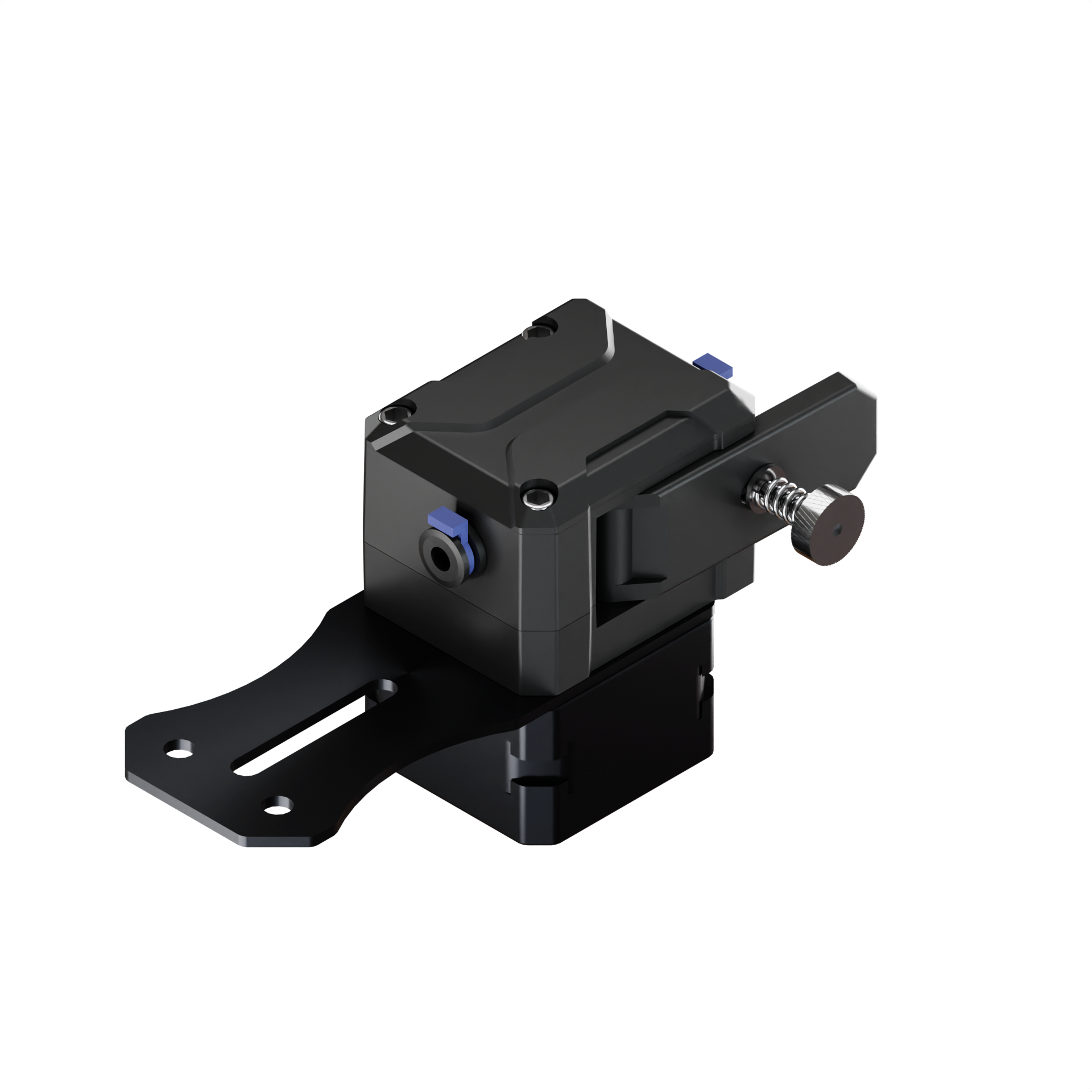


Our next-generation, waste-free IQEX 3D printer, Co Print Quadro, has received extraordinary interest since the very first day it opened for early reservations.
Thank you for the thousands of reservations and the trust you have shown.
Now, instead of keeping you as just observers, we want to make you a part of the process and customize the printer together with you.
In the first post of our Progress Update series (#1), we introduce QuadrOS, the operating system that powers Quadro, and announce its beta version.
In addition, we will share an interactive form where you can tell us what you would like to see in the interface and ask the questions you’re curious about.
This way, you will be able to directly take part in the development process.
What is QuadrOS?
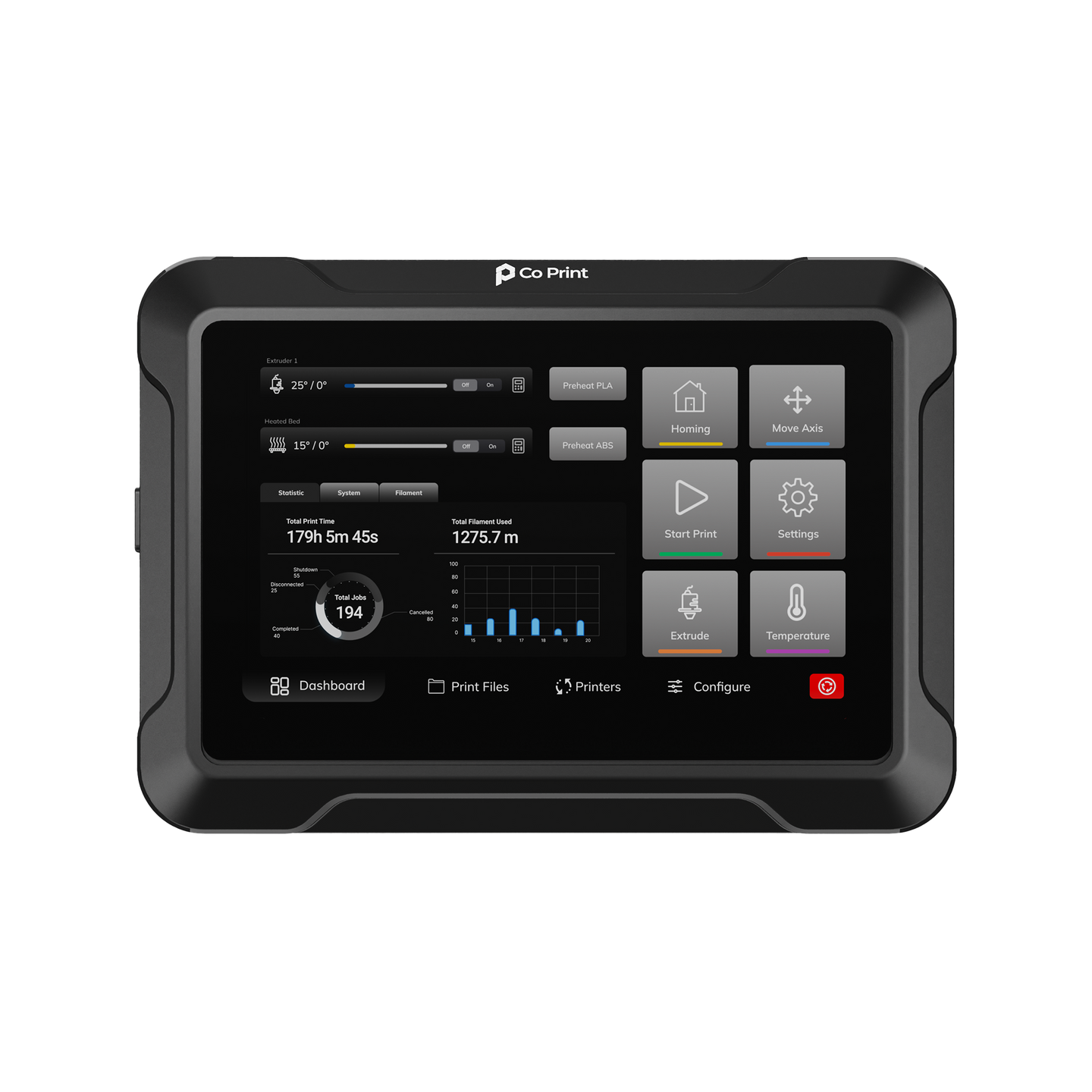
QuadrOS is a modern printer operating system we developed for the IQEX printer architecture. It is built on the Klipper based and designed to synchronize and manage four print heads simultaneously.
With its intuitive interface, it delivers a powerful yet easy-to-use printing experience.
QuadrOS works in full synchronization with Orca Slicer based Co Print Slicer and automatically detects the filaments installed in the printer.
For example, when you prepare a multi-color print file, you can send the model directly to the printer over the network. QuadrOS automatically matches the colors assigned in the slicer with the filaments loaded in the printer and assigns the print heads accordingly.
Without any manual setup, the correct color is assigned to the correct head, and the printing process starts smoothly.
Since QuadrOS was designed from the ground up specifically for Quadro, the filament loading and placement screens are perfectly aligned with the hardware.
The physical filament layout on the printer is mirrored schematically in the interface, allowing users to instantly see which filament is inserted into which slot and manage them intuitively.
Now, let’s explore the interface page by page.
Printing Screen
 When a print starts, you are greeted by the Printing screen.
This screen is designed to give you a clear, real-time overview of the active printing process.
A colored preview of the model—exactly as painted in the slicer—is displayed on the screen. Important information such as the file name, estimated print time, total layer count, and the currently printed layer is shown directly on the interface.
There is also a dedicated print-head status widget that shows which print head is currently active and which ones are parked. This allows you to follow the printer’s movement logic and workflow in real time.
On the right side of the screen, you’ll find a global monitoring and control panel that is always accessible. Here you can see:
-
Nozzle and bed temperature indicators
-
Fan controls
-
Mini status indicators for filament slots
You can also instantly access essential printing controls such as Stop, Pause, and Speed adjustment directly from this page.
When you click on any file on the Printing Files screen, you are taken to the Confirm Print screen.
Print Starter Screen
 This screen allows you to match the colors used in the file with the available print heads before the print begins. QuadrOS analyzes the colors used in the model and compares them with the filaments currently loaded in the printer.
If a different filament is installed in one of the print heads, the system will automatically notify you.
For example:
If the model contains the color blue, but there is no blue filament loaded in the printer, a clear warning will appear on the screen and you will be presented with several options:
-
Change the filament
-
Match the color with a different print head
-
Cancel the print
This ensures that potential color mismatches are detected before the print starts, keeping the entire process fully under control.
Printing Files Screen
 On the Printing Files screen, the print files you upload to the printer or send via Wi-Fi are displayed in a 3×3 grid layout.
Each file is presented with the following information:
-
Model preview
-
File name
-
Estimated print time
-
Amount of filament required
This allows you to quickly browse through your files, select the model you need, and start the print with a single tap.
Filament Management Screen
 The Filament Management screen is designed to help you manage the filaments installed in the printer easily and in a controlled way.
By pressing the Load button for each print head, you can automatically load filament, and with the Unload button you can safely remove the installed filament. The entire process is handled in a controlled manner by the system.
The schematic layout on the screen is designed to exactly match the printer’s physical filament arrangement. This allows you to insert the correct filament into the correct slot intuitively, without confusion.
By tapping on the loaded filament, you can select:
-
Color
-
Type (PLA, ABS, etc.)
-
Material profile
-
Brand
Based on these selections, the appropriate automatic print settings are applied for that filament.
Once the setup is complete, the color and type of the installed filament are clearly displayed in the interface, ensuring full alignment between the physical and digital setup.
Filament Configuration Screen
 The Filament Configuration screen is used to configure a newly loaded filament or edit an existing one.
The screen is organized into four columns:
Brand Selection
In the first column, you select the filament brand.
Based on your choice, print profiles are optimized and manufacturer-specific settings can be automatically applied.
Material Selection
The second column is for choosing the filament type.
You can select from different materials such as PLA, ABS, or PETG, activating pre-configured print settings optimized for that material.
Color Selection
In the third column, you select the filament color.
Color-specific purge settings are automatically applied, ensuring more efficient and controlled color transitions during printing.
Settings Preview
The final column provides a preview of the applied settings based on your selections.
All configurations are summarized here, showing clearly the parameters the system will use.
Once you have completed your selections, press the Confirm button to apply the configuration.
Move Axis Page
 The Move Axis page allows you to manually control all axis movements of the printer. From this screen, you can move the X, Y, and Z axes and return the axes to their Home positions with a single tap.
At the top, there is a movement distance selector that determines how far the axes move when you press the directional buttons. With step options of 1 mm, 5 mm, and 10 mm, you can achieve both precise and rapid positioning.
On the left side, you can select which print head will be controlled during X-axis movements. This allows you to position each toolhead individually and safely in a multi-print-head setup.
Settings Menu
 The Settings menu is the central control area where you can access all system configurations and general information about the printer.
This section includes key settings and management options such as:
-
Wi-Fi Settings – Configure and manage the wireless network connection
-
Calibrations – Perform axis, bed, and nozzle calibrations
-
Firmware Update – Update the system software and install new versions
-
Device Information – View device details, system version, and hardware specifications
-
Language Selection – Change the interface language
By grouping all system settings under a single menu, it provides a clean and easily accessible structure.
Printer Calibration Page
 The Printer Calibration page allows you to perform automatic calibration using the sensors on the printer. The entire process is designed to achieve maximum accuracy with minimal manual intervention.
Full Self Check
This option runs all calibration steps sequentially and automatically. The printer completes system checks and becomes ready for printing.
Build Plate Leveling
This calibration precisely aligns the build plate with the print heads, optimizing first-layer adhesion and surface accuracy.
Toolhead Calibration
Performs 3D (X, Y, Z) position verification for all four print heads. Ensures maximum alignment accuracy in multi-head printing architectures.
Input Shaping Calibration
Analyzes vibrations to minimize motion-induced resonance, helping achieve smoother surface quality, especially at high printing speeds.
Full Self Check System
 When the Full Self Check calibration is initiated, the printer automatically executes the process step by step.
First, all axes are safely moved to their Home positions, verifying the system reference points. Next, the process moves to the Toolhead Heating stage, where all four print heads are heated sequentially to 200°C.
Once all heads reach the target temperature, the system automatically proceeds to the Nozzle Cleaning stage.
Nozzle Cleaning Stage
 During the Nozzle Cleaning stage, the print heads are directed to the integrated nozzle cleaning units located at the park stations.
Each toolhead tip is automatically cleaned in sequence, removing any residual material. Once the cleaning process is complete, the print heads are safely cooled to 140°C in a controlled manner and returned to their park positions.
Toolhead Position Verification Stage
 In the fourth stage, the printer performs X, Y, and Z position verification for the print heads. This process is fully automated using the 3D calibration probe located at the rear of the build plate.
Each toolhead is measured sequentially, ensuring precise three-dimensional alignment.
In the interface, calibrated print heads are marked with a green “Done” status. The head currently undergoing calibration is displayed with an animated “Calibrating…” label, while those waiting their turn appear in grey as “Waiting”. This allows the user to monitor the entire process visually and in real time.
Build Plate Calibration Stage
 In the fifth stage, the Build Plate Calibration process begins. Using a single print head, the build plate is mapped in detail and the Z-offset values are calculated with high precision. Based on these measurements, the plate surface is calibrated, ensuring the optimal first-layer height.
Once the calibration is complete, the generated Z-offset values are shared with all print heads. This ensures that in a multi-toolhead setup, all heads are aligned to the same reference plane, providing a consistent and uniform print start across the system.
Vibration Calibration Stage
 In the final stage, vibration calibrations are performed for all print heads and the build plate. The system analyzes potential resonances that may occur during motion and applies optimizations to minimize vibration-induced errors.
This ensures smooth and consistent print surfaces, even at high printing speeds.
Completing the Full Self Check
 This completes the Full Self Check, which includes all calibration steps.
When you click the Finish button, all calibration data is saved, and the printer becomes ready for printing.
Getting to Know QuadrOS 1.0 (Beta)
We’ve had the opportunity to experience and explore QuadrOS 1.0 (Beta) in detail. Next month, the beta version will be opened to everyone.
You can share the features you’d like to see in the interface or any ideas you have page by page via this Form.
This way, you can directly contribute to the development of QuadrOS.
Where Does Quadro IQEX Stand Now?
We know you’re eager to know! We share your excitement and impatience to get the product into your hands as soon as possible.
The Quadro chassis will be produced using aluminum injection technology, and the molds are currently being prepared. Serial production of the chassis components will begin shortly.
DFM analyses for the plastic injection molds are ongoing; once these analyses are complete, mold production will commence. The entire process is progressing carefully according to our planned production schedule.
Our goal is to deliver a plug-and-play product that is user-friendly, automated, made with high-quality materials, and thoroughly tested. We continue working relentlessly toward this goal.
Although it’s too early to announce a final price, we can confidently say that Quadro will be priced below $1000.
We will continue to share every step of the production and development process transparently with our valued backers. With this, we’ve completed the first part of our progress update series.
In the next update, we’ll share further progress and provide a beta tester application form, so you can experience the printer even before it officially launches.
We’re excited to have you follow along.
With love,
The Co Print Team


50 comments
Sizleri yakından takip ediyorum, Creality Ender 3 V3 Plus yazıcımı renklendirmek için KCM Multi-Color Upgrade Kit alarak inanılmaz baskılar elde ettim. Tek renkten çoklu renge geçtim harika bir his, şimdi sırada CoPrint ekibinin muhteşem teknolojisini kullanmakta. Sabırsızlıkla Co Print Quadro’nun piyasaya çıkmasını bekliyorum.
Test aşamasına dahil olmak benim için bir onur olacaktır, umarım beni Beta testçisi seçersiniz. İnanılmaz istekli ve inanılmaz heyecanlıyım Beta testçisi olmak için
Would love to be a beta tester. Thank you in advance.
I would be happy to be a a beta tester.
This is looking great!! I’d love to be included in a testing phase if that becomes an option. I’ve been wanting to get this printer ever since I saw the first announcement!! Can’t wait!
I’d love to be a Beta tester as well! I’ve been printing since 2018, I’ve had 2 IDEX machines in the past and know how to manual calibrate one so the fact this one is auto calibrating is so exciting. I understand there will be issues and I’ve trouble shoot them before with my tenlog tl-d3 pro. I no longer have that machine but used it for years and I am so excited about this machine!